

- Macrium Reflect Free edition has been retired
- Best Free Cloning Software — Hasleo Backup Suite Free
- Tutorial to Back up Windows/Disks/Partitions/Files/Folders with Hasleo Backup Suite Free
- Tutorial to Restore Windows/Disks/Partitions/Files/Folders with Hasleo Backup Suite Free
- Frequently Asked Questions
- Conclusion
With Macrium Reflect Free retired, are you looking for the best free cloning software? Hasleo Backup Suite Free is the best free cloning software and a powerful alternative to Macrium Reflect. It offers fast disk and partition cloning along with comprehensive backup features.
Macrium Reflect Free edition has been retired
Macrium Reflect is a Windows backup software developed by Paramount Software UK Limited. As an excellent solution, it has a large global user base. A key reason for its popularity is that it has always offered a free edition, Macrium Reflect Free. However, in 2023, Paramount Software announced the retirement of Macrium Reflect Free Edition, stating that as of January 1, 2024, it would no longer provide a free version nor any further patches or security updates for it. If you are still using the free version of Macrium Reflect, you will see the following update prompt upon startup:

With the retirement of the free version, users must decide between upgrading to a paid Macrium Reflect license or seeking an alternative. If you have enough budget and are accustomed to the software, upgrading is a straightforward choice. However, to be honest, it's not cheap. Pricing starts at $49.99 per year, or you can pay a one-time fee of $79.99 for updates limited to the current version.
Best Free Cloning Software — Why Hasleo Backup Suite Free is the Alternative to Macrium Reflect
If you're looking for the best free cloning software as an alternative to Macrium Reflect Free Edition, you've come to the right place. Hasleo Backup Suite Free is powerful and free Windows backup and cloning software developed by Hasleo. As a top-rated free cloning software, it not only matches the core cloning functionality of Macrium Reflect Free but also surpasses it.
✦ Free cloning software at no cost: Enjoy disk and partition cloning completely free without paying anything.
✦ Faster cloning speed: In comparative tests, Hasleo Backup Suite Free demonstrates significantly faster restore times while maintaining comparable backup performance.
✦ Comprehensive cloning features: Clone disks, partitions, and migrate your Windows OS with the best free cloning software available.
✦ Simpler and easier-to-use interface: Unlike the complex interface of Macrium Reflect, Hasleo Backup Suite offers an intuitive experience that anyone can master.

Download Hasleo Backup Suite Free as a powerful free cloning software and the best alternative to Macrium Reflect Free. It can clone disks, partitions, and back up your Windows OS, disks, partitions, and files/folders.
Tutorial to Back up Windows/Disks/Partitions/Files/Folders with Hasleo Backup Suite Free
Step 1. Download, install, and run Hasleo Backup Suite Free. Click the "Backup" button in the navigation bar, then click "System Backup", "Disk/Partition Backup", or "File Backup" button in the operation area.
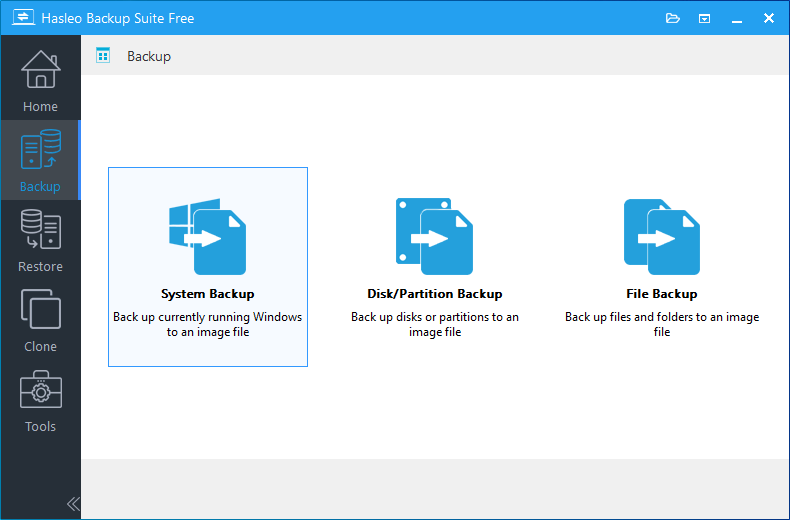
Step 2. Select the system, disks, partitions, or files/folders you want to back up. Specify the task name, description, destination, and backup options according to your needs. Then click the "Proceed" button.
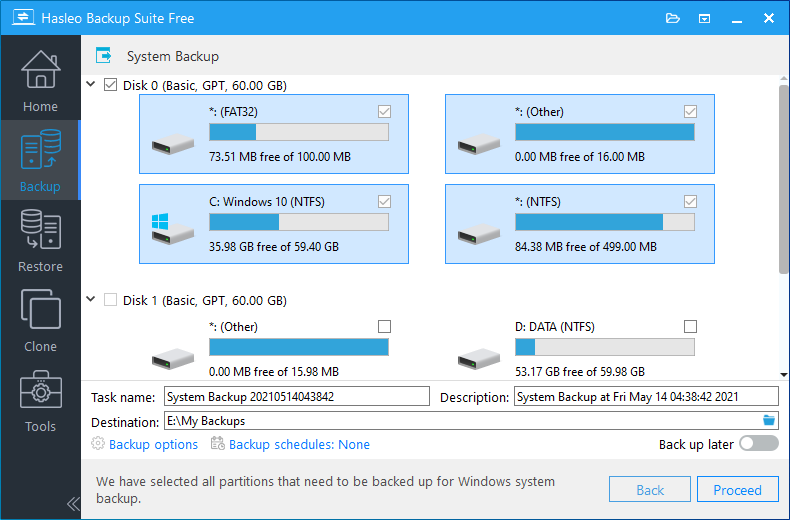
* Tips: If you select "System Backup", Hasleo Backup Suite Free will automatically select all partitions required for a Windows system backup.
* Task name: Specify a task name so that you can quickly find and manage your backup task later.
* Description: Briefly describe the purpose of the task and any other relevant information.
* Destination: Modify the destination path where the backup image files will be stored by clicking the folder icon.
* Backup options: Advanced backup settings. For more details, please refer to Backup options.
* Backup schedule: Set up backup schedules to automatically perform your backup tasks on a regular basis. For more details, please refer to Backup schedule.
Step 3. After clicking the "Proceed" button, Hasleo Backup Suite Free will begin backing up your Windows operating system, disks, partitions, or files/folders to the storage path you specify. Please note that the backup time depends on the size of the data that needs to be backed up; please be patient.
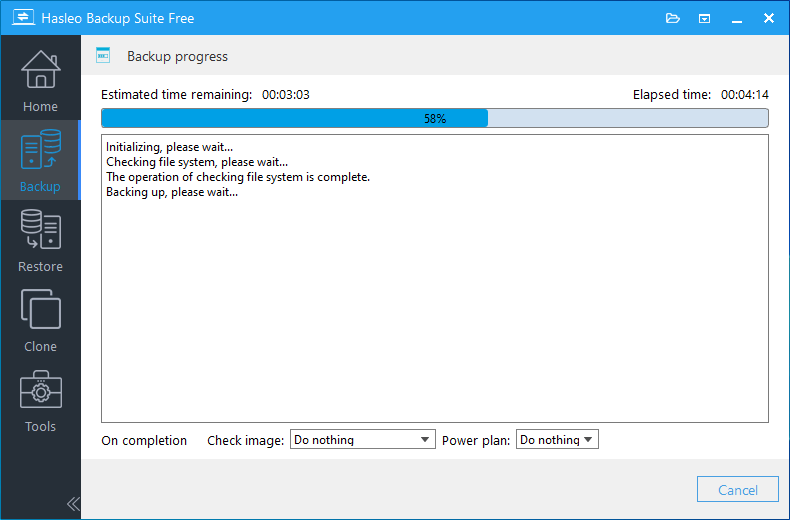
* Priority: Specify a priority for the backup process. A higher priority allocates more CPU time to the backup, which may cause other programs to run slower.
* Check image: Verify the integrity of the backup image files upon completion of the backup process.
* Power plan: Perform the power management action after the backup is complete.
Tutorial to Restore Windows/Disks/Partitions/Files/Folders with Hasleo Backup Suite Free
Step 1. Click the "Home" button in the navigation bar. Then, find the backup task you want to restore, click "Actions", and select "Restore" from its menu.
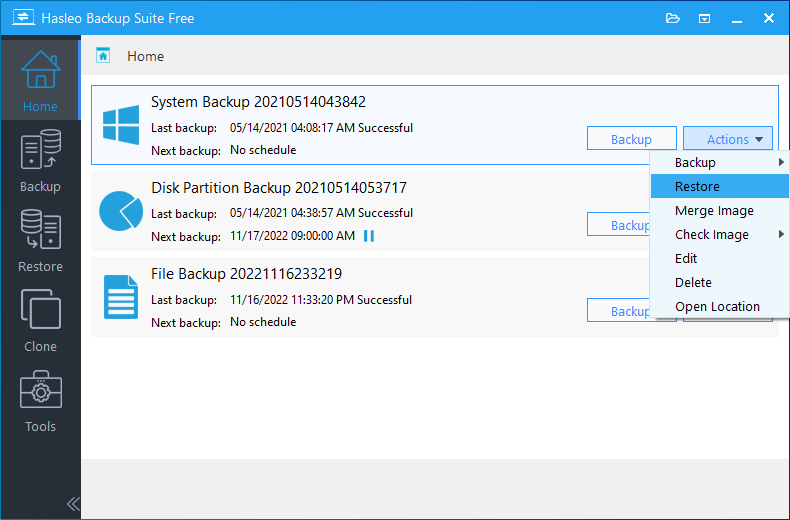
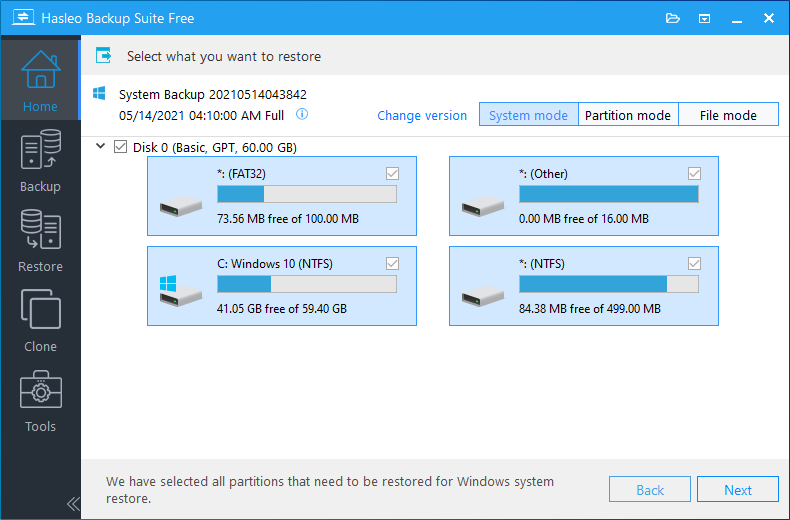
Step 2. For system backup or disk/partition backup tasks, please select the backup version and the disk or partition you want to restore here. Then click the "Next" button.
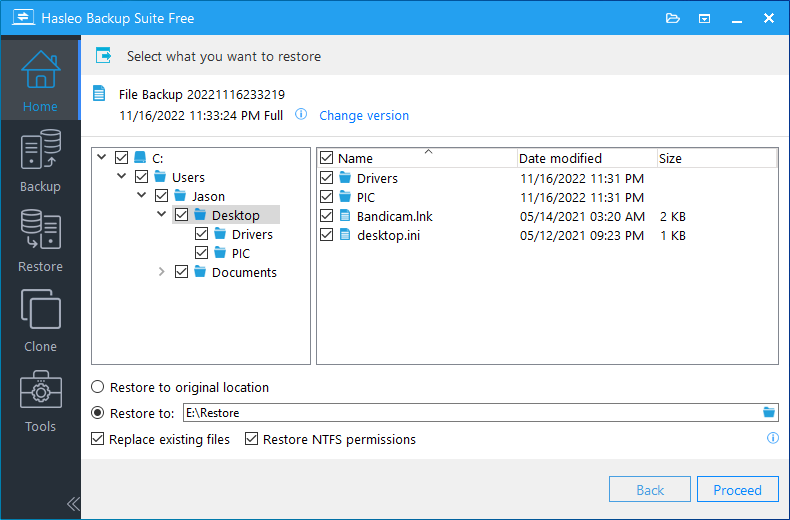
For file backup tasks, please select the backup version and the files/folders you want to restore. Specify the destination location here, then click "Proceed" to start the restoration.
* Tips: Please note that steps 3 and 4 apply only to System Restore and Disk/Partition Restore.
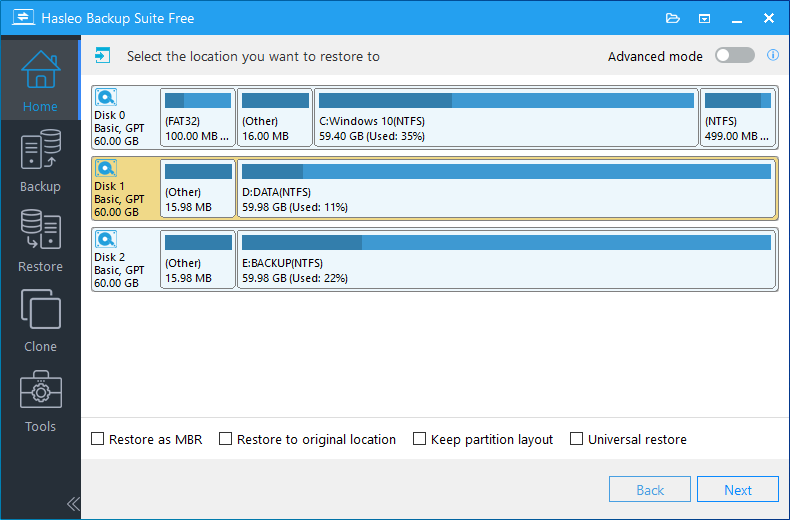
Step 3. Select the destination to restore the system, disk, or partition to, then click "Next".
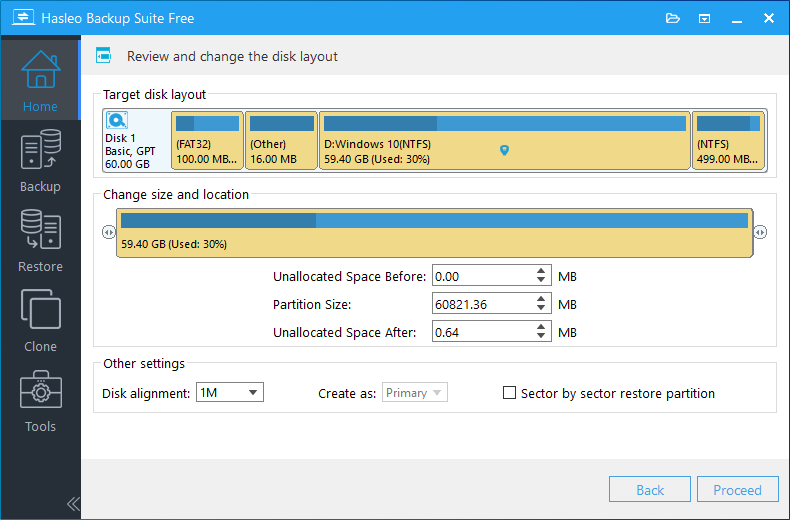
Step 4. Adjust the size and location of the partitions according to your needs and click "Proceed". A warning message will appear, telling that all data on the destination drive will be destroyed. If the destination disk contains no important data, click "Yes" to continue.
Step 5. Hasleo Backup Suite Free is now restoring the Windows operating system, disks, partitions, or files/folders to the destination disk. The required time depends on the size of the data that needs to be restored; please be patient.
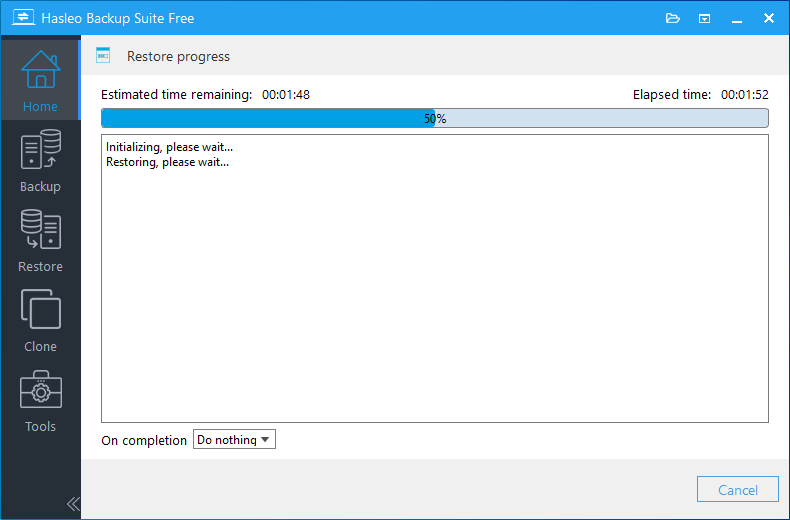
* Here you can specify a power management action to be performed after the backup is complete.
Frequently Asked Questions
A: The best free cloning software for Windows is Hasleo Backup Suite Free. It offers fast disk and partition cloning, Windows backup and restore, and is the best alternative to Macrium Reflect Free.
A: Hasleo Backup Suite Free is the best free cloning software and alternative to Macrium Reflect Free. Since Macrium Reflect Free was retired in 2024, Hasleo provides all the core features including disk cloning, Windows backup/restore, incremental backup, and more.
A: Paramount Software announced the retirement of Macrium Reflect Free Edition in 2023. As of January 1, 2024, they no longer provide a free version or any further patches and security updates for it.
A: Yes, in comparative tests, Hasleo Backup Suite Free demonstrates significantly faster restore times while maintaining comparable backup performance as the best free cloning software.
A: Yes, Hasleo Backup Suite Free supports disk and partition cloning as a core feature of this free cloning software.
Conclusion
As free cloning software, Hasleo Backup Suite Free offers disk cloning, partition cloning, and Windows backup functionality — nearly all the features of Macrium Reflect while being faster and more user-friendly. With Macrium Reflect no longer providing a free version, Hasleo Backup Suite Free is the best free cloning software and the best alternative.
Related Articles
- How to Create Full/Differential/Incremental Backups in Windows Using Hasleo Backup Suite Free?
- How to back up and restore Windows 11 for free?
- How to Restore Your System From Full/Differential/Incremental Backups?
- How to set up a schedule to automatically back up Windows Server?
- How to set up backup schedules to automatically backup Windows?


