I created a Windows To Go USB drive using the free version of Hasleo WinToUSB, and it has been working very well. Thank you for providing such amazing software. I have some important personal files stored on this USB drive. Since I often take it to different locations, I want to encrypt it with BitLocker. However, the Windows installation on it is the Home edition, and I cannot find BitLocker anywhere. Do you know of any way to enable BitLocker encryption on a Windows To Go USB drive? Any suggestions would be greatly appreciated. Thank you in advance!
If your Windows To Go (WTG) USB drive was created with Windows 11/10/8 Professional or Enterprise, you can encrypt it using the built-in BitLocker tool. However, BitLocker is an enterprise feature and is not available in Windows Home and Windows 7 Professional Editions. This means you cannot enable BitLocker on a WTG drive from a Home edition system. Don't worry—you can still use Hasleo BitLocker Anywhere, a third-party BitLocker encryption tool, to turn on BitLocker for your WTG USB drive. Here we will not discuss how to create a Windows To Go USB device. It assumes you have already created a Windows To Go drive and focuses solely on encryption with Hasleo BitLocker Anywhere.



Step 1. Download and install Hasleo BitLocker Anywhere.
Step 2. Connect the Windows To Go USB drive you created to this computer.
Step 3. Assign a drive letter to the Windows boot partition (the partition that contains the Windows directory).
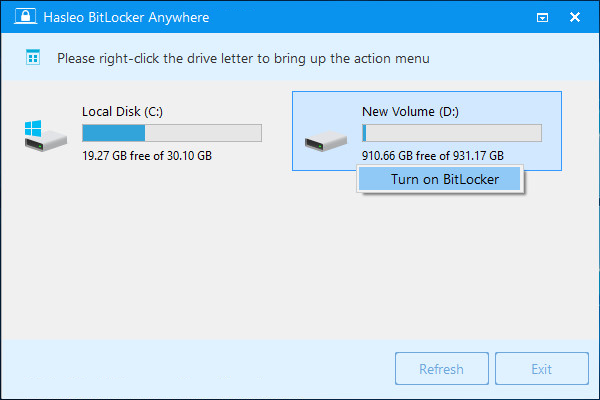
Step 4. Launch Hasleo BitLocker Anywhere, right-click the drive letter you assigned in the previous step, then click "Turn On BitLocker".
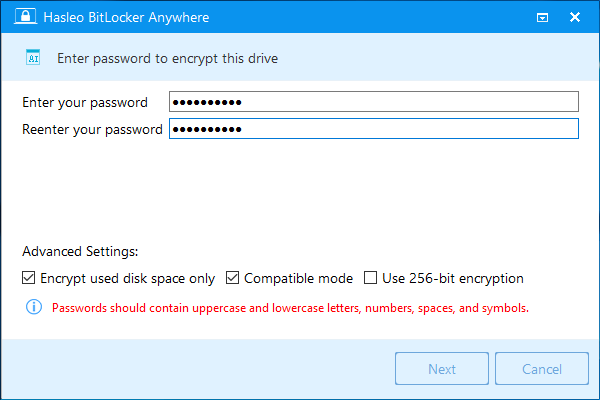
Step 5. In this step, you are required to set a password for encrypting the drive. Enter your password and click "Next". For better security, choose a password that includes a combination of uppercase letters, lowercase letters, numbers, spaces, and special symbols. Once encryption is complete, you will be able to access the drive using this password.
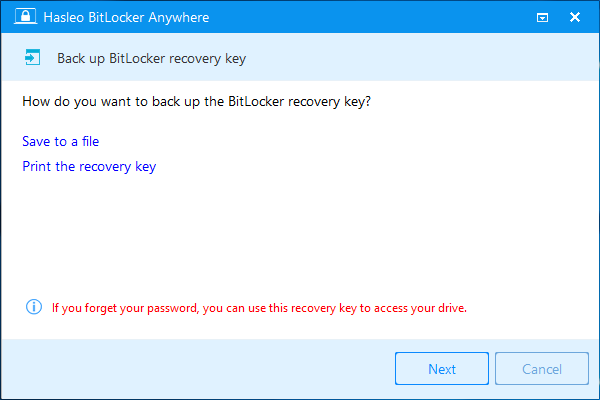
Step 6. Back up your BitLocker recovery key, then click "Next" to continue. You can save the recovery key to a file or print a copy. Please note that anyone with the recovery key can access the drive, even without the password entered in the previous step. Therefore, do not share it with anyone.
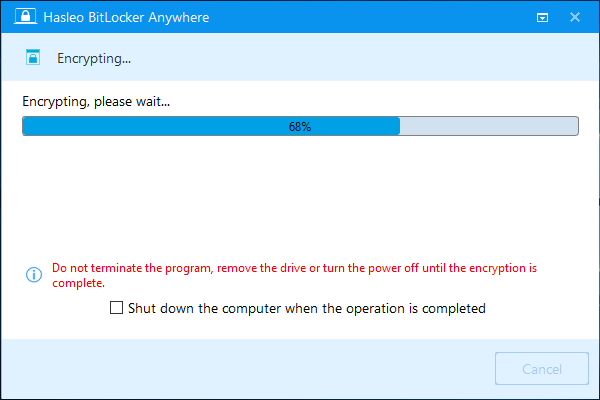
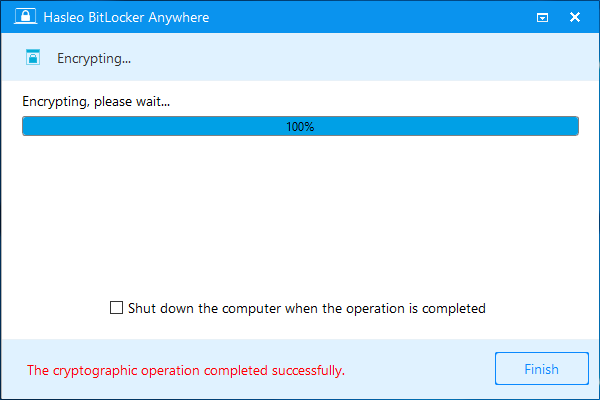
Step 7. Hasleo BitLocker Anywhere will now encrypt the contents of the selected drive using BitLocker drive encryption. The encryption process could take a long time to finish depending on the size of the drive, so please be patient to wait. If you don't want to wait until the encryption operation is finished, "Shut down the computer when the operation is completed" option is a good idea. Just check it.
Step 8. After encryption is complete, click the Finish button to close the window. The partition is now BitLocker-encrypted, so you can only access it by entering the correct BitLocker password or recovery key.
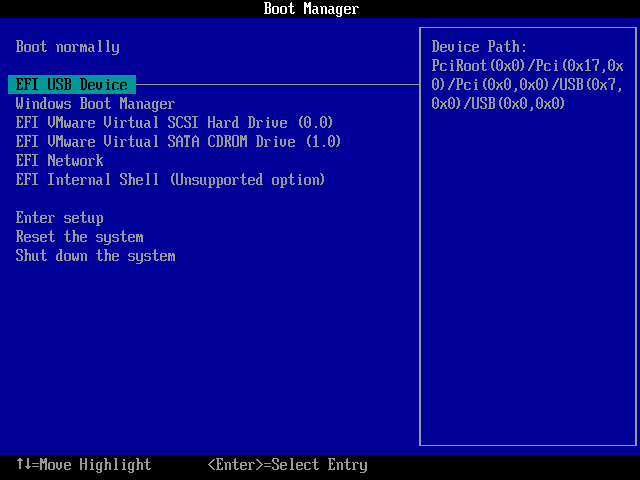
Step 9. Restart the computer and change BIOS to boot from the USB drive.
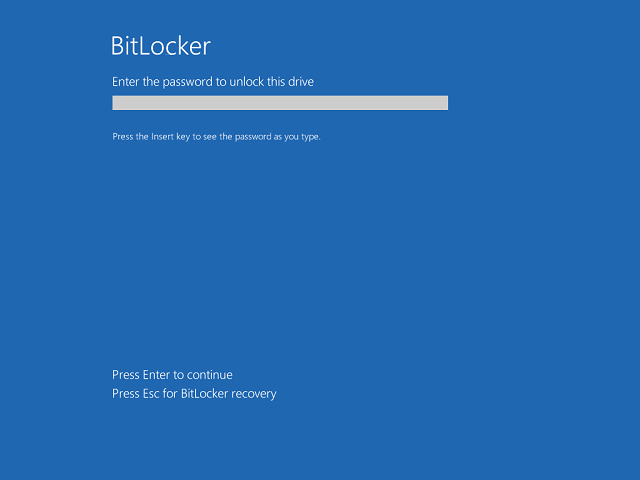
Step 10. Now you have to enter the BitLocker password or BitLocker recovery key before you can start Windows.
To protect a Windows To Go USB drive from data leakage, Hasleo BitLocker Anywhere is the best choice—it encrypts all editions of Windows 11, 10, 8, and 7.
If you accidentally delete files from or format a BitLocker-encrypted drive, we recommend trying Hasleo BitLocker Data Recovery, a professional BitLocker data recovery solution.